 RGXbot
Before you start
Linux x86_64, a separate Tibia installation, an RGXHub account and Internet access.
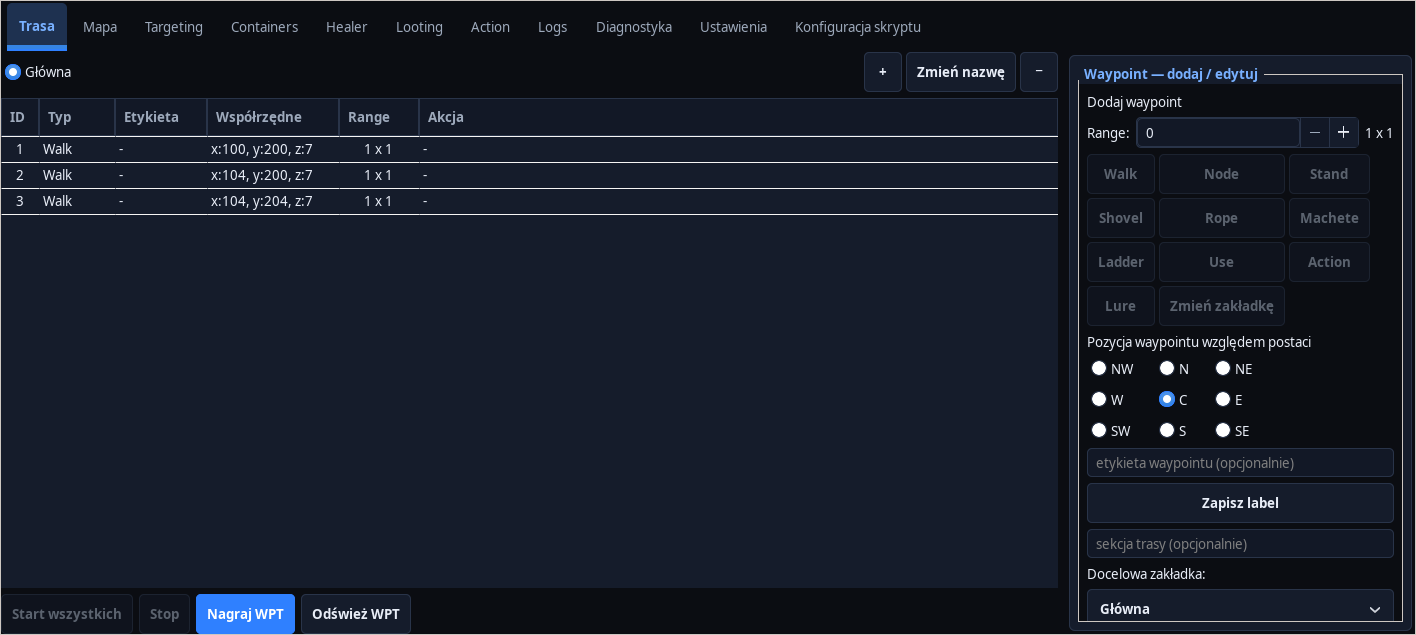 Open full screenshot ↗
Screenshot of the actual development-version interface. Settings and data are examples.
Install RGXbot and RGX HUB
Download the installer from the official update website. Run it as a regular user and select Install. The package includes applications and an updater; you install the game separately.
Select the game client
Open RGX HUB from the applications menu. In settings, select your own Tibia installation location. Start the client and log in with the character you want to configure.
Confirm your account and access
Log in to your RGXHub account. Check your license and device status. The portal account and local manager RGX HUB play different roles: the portal shows access and the application handles characters and screens.
Load the correct character
Open its RGXbot panel and check the character name and selected client. An open panel alone does not mean client reads are ready. Wait for current HP, MP and position.
Prepare your first profile
Save the empty configuration via File → Save As… and select one of the four profile locations. Then set the healing, one monster rule and short route according to the next guides.
Check the modules one by one
Verify Healer first, then Targeting and Looting, and finally the route. Before leaving a session running, check stamina limits and death handling. Loading a profile does not automatically start hunting.
After completing the guide
The panel shows the correct character and current readings, and the configuration has its own saved profile.
Troubleshooting
No character data available
Check the selected client, login status and message in Diagnostics. Don't accidentally assign a second character.
Access unavailable
Check your account, license and devices in the portal; the running game client itself does not confirm the authorization of RGXHub.