 RGXbot
Before you start
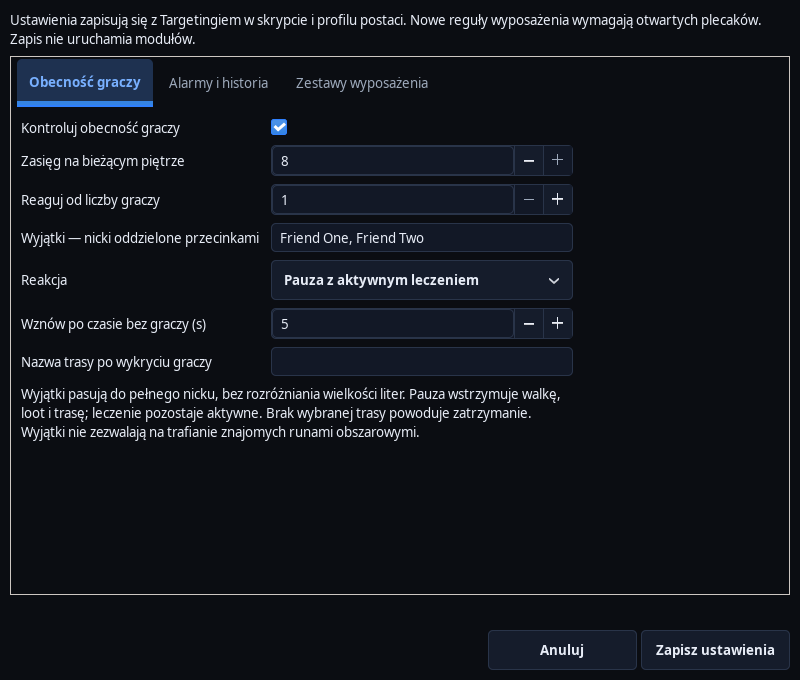
Loaded character and edition with the Players, Alarms and Gear Sets window….
 Open full screenshot ↗
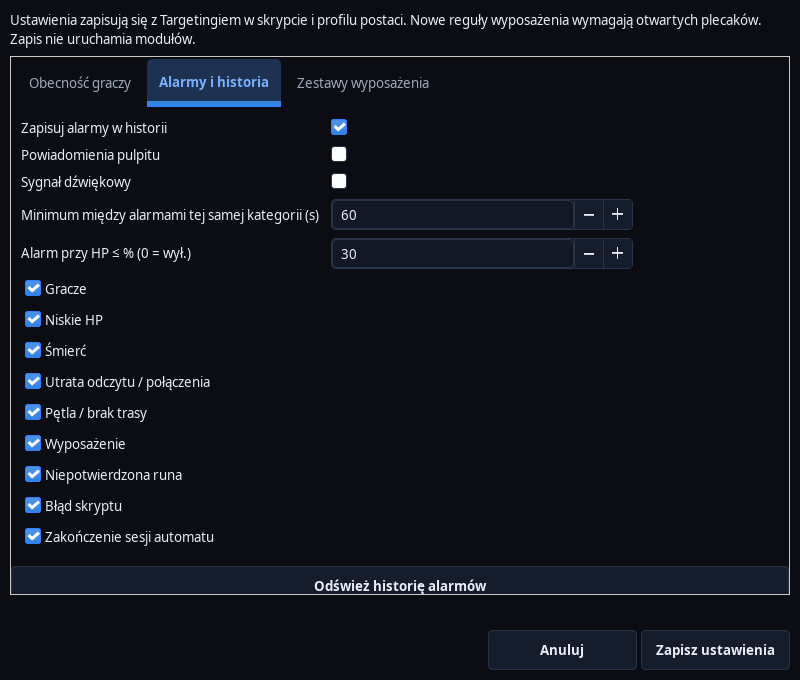
Screenshot of the actual development-version interface. Settings and data are examples.
 Open full screenshot ↗
Screenshot of the actual development-version interface. Settings and data are examples.
Open presence settings
In Targeting, select Players, Alarms & Loadouts… and then Player Presence. Enable the rule, set the radius and minimum number of players. The sighting concerns visible figures on the same floor.
Choose a reaction
Set an alarm, pause, stop or reroute. To change the route, enter the name of the existing tab Cavebota. The pause is pending the fulfillment of a condition of release; Stopping requires subsequent conscious activation.
Complete exceptions and delay
Add trusted player names to the whitelist and set the time without other players required to release the pause. Exceptions in this check do not disable the separate spell or rune area protections.
Set local alarms
In Alarms & History, select events, notification interval, sound, and desktop notifications. Also set a low HP threshold. Save your settings and profile.
Check the history
After the event, find its time and description in the alarm history or history as RGX HUB. If the character is standing, first check whether the presence rule or other stopping condition is in effect.
Separate portal notifications
Configure Discord notifications on the website under My account after connecting Discord. Delivery also requires a configured server. A local sound or history entry does not confirm Discord message delivery.
After completing the guide
The presence of players triggers a chosen reaction, and the story helps determine the reason for it.
Troubleshooting
Does not change the route
Check the exact name and existence of the destination tab.
No desktop notification
Check the switch, notification interval and system settings. An event entry may exist independently of sound.