 RGXbot
Before you start
XML loaded. Form definition requires release with Lua/JSON editor.
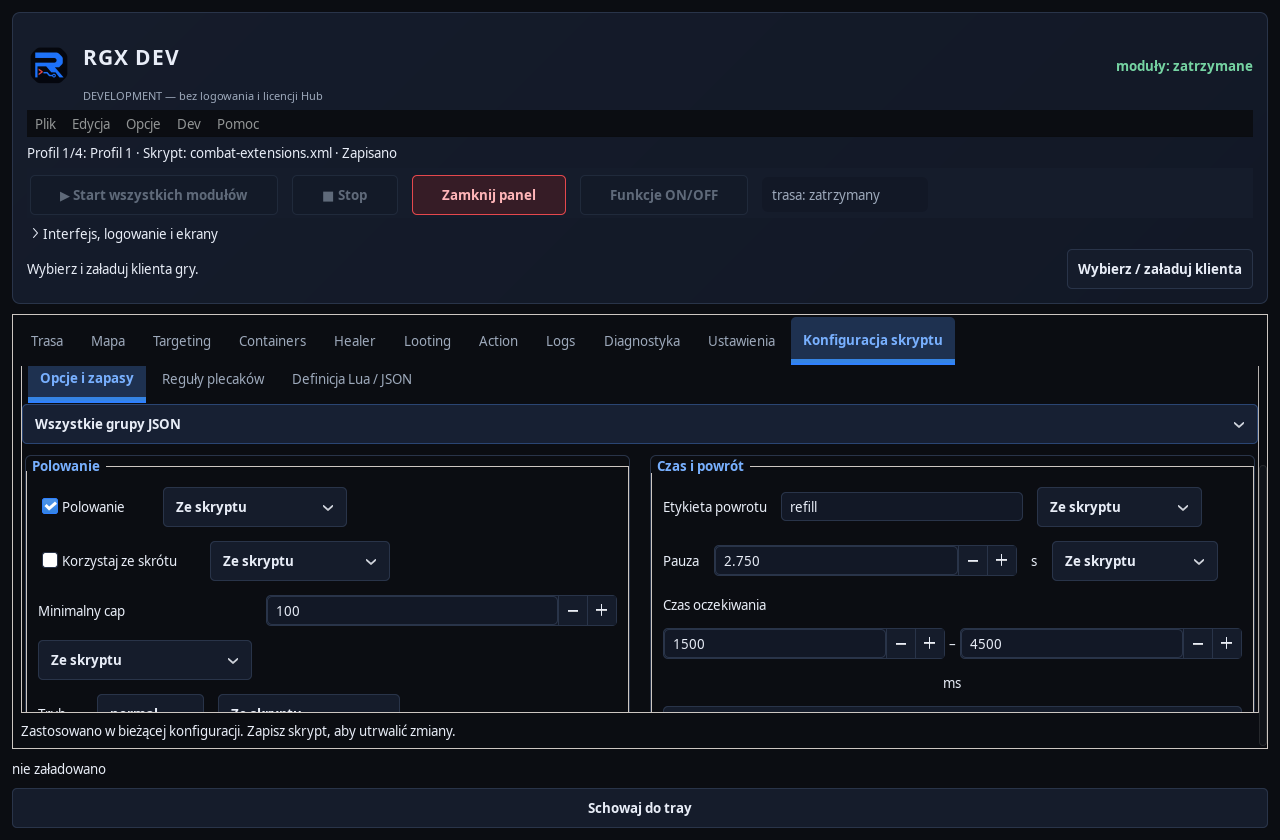 Open full screenshot ↗
Screenshot of the actual development-version interface. Settings and data are examples.
Open Script Configuration
This tab combines options, supplies, backpack rules and the form definition. First check the current script name and character so you edit the correct settings.
Change the value and apply
Customize existing fields, such as minimum cap or stock count, and click Apply. Cavebot and Action use common values on the next read. Save the full XML later via File → Save.
Choose your own values
For options, select From Script or Custom for Character. The custom cap threshold may vary between characters using the same XML. The overwrite belongs to the selected profile location.
Prepare the JSON form
In Lua / JSON definition, choose Insert sample JSON. Adjust the names and values of existing controls. Groups, text fields, checkboxes, lists and numeric ranges are available. Apply the definition and check the generated fields.
Separate the form from game actions
The definition creates controls offline. Game commands, waits and client reads belong in actions, not the form definition. Supporting the options format does not mean importing entire WindBot scripts.
Check saving and loading
Save the XML, reload and compare the form, values and option sources. For a simple route condition you can use getuseroption("option_name"); the name must match the definition.
After completing the guide
The form and its values are restored from XML, while custom settings remain assigned to the character.
Troubleshooting
Definition error
Go back to the sample JSON and make small changes. Do not add game commands to control definitions.
The change disappeared after loading
Verify that both Apply and File → Save have been performed and that the correct profile is selected.